Create a Template
There are three ways to get a template:
- Create a new template in the Templates tab of the AutoPage admin page (Jira administrators).
- Mark an existing page in Confluence (users with edit permission on the page).
- Add an AutoPage macro to a page. AutoPage detects the template automatically.
Create a new template in the Templates tab
Section titled “Create a new template in the Templates tab”- In Jira, open the AutoPage admin page and select the Templates tab.
- Click New template.
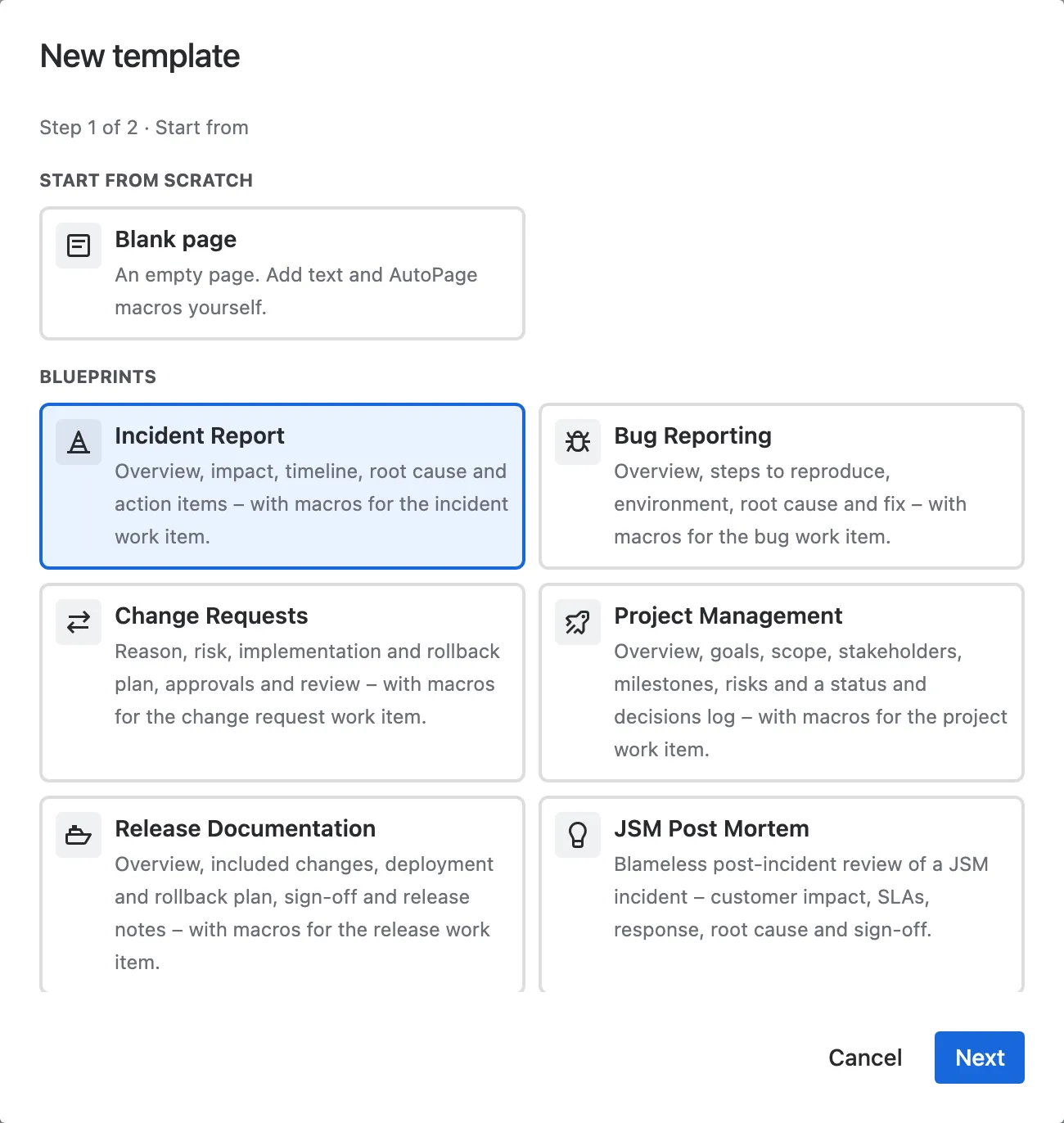
- Step 1 of 2 · Start from: Select Blank page or one of the blueprints. Click Next.
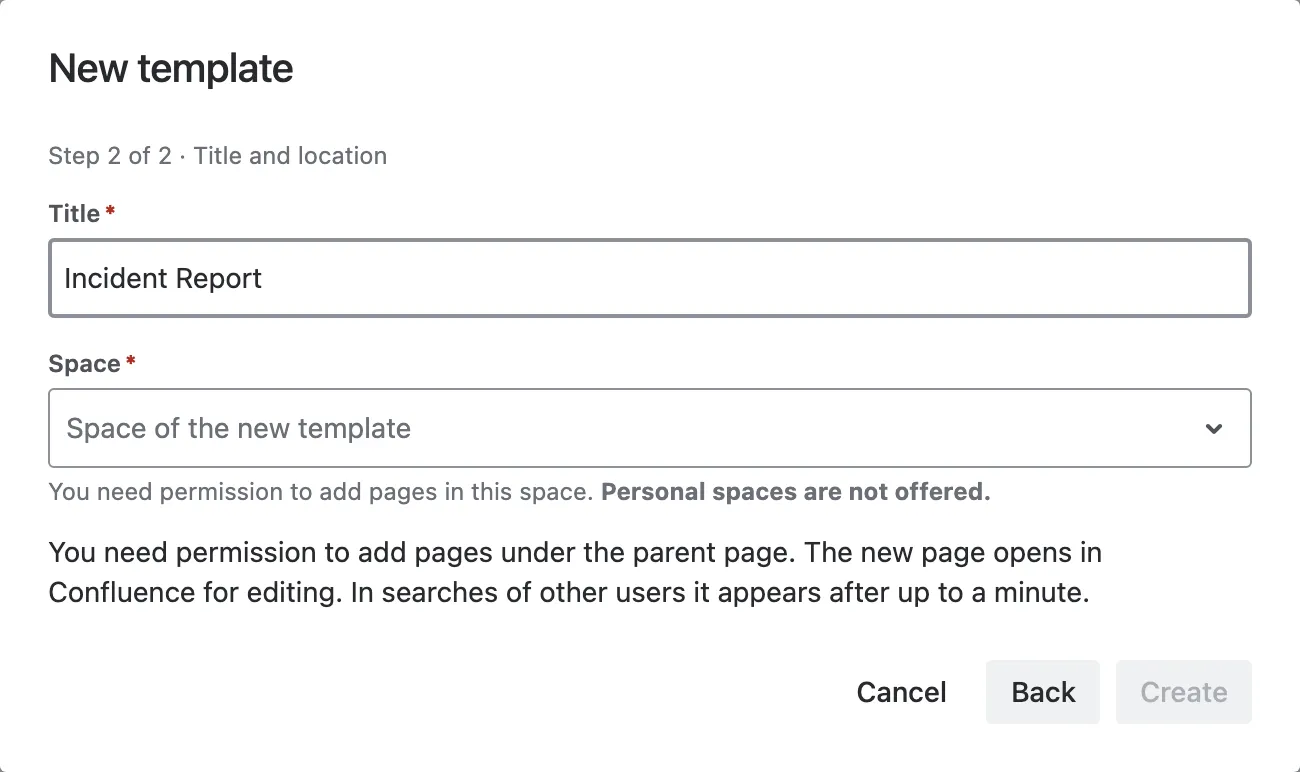
- Step 2 of 2 · Title and location: Enter the Title. Select the Space and the Parent page. The new template is created below this page.
- Click Create.
The new page opens in Confluence for editing. Its status is Active (set manually). Other users find it in their searches after up to a minute.
Permissions and errors
Section titled “Permissions and errors”- You need permission to add pages under the parent page.
- The AutoPage app user also needs permission to add pages under the parent page. If it has none, the dialog says so. Give the app user access to the page or the space, or choose another location.
- Personal spaces are not offered.
- A page title must be unique in the space. If a page with this title exists, the dialog shows “A page with this title already exists in this space.”
Blueprints
Section titled “Blueprints”A blueprint is a prepared page with a structure for one use case. AutoPage macros for the standard fields of the work item are already in place. Text in the page recommends further macros.
| Blueprint | Content |
|---|---|
| Incident Report | Overview, impact, timeline, root cause and action items – with macros for the incident work item. |
| Bug Reporting | Overview, steps to reproduce, environment, root cause and fix – with macros for the bug work item. |
| Change Requests | Reason, risk, implementation and rollback plan, approvals and review – with macros for the change request work item. |
| Project Management | Overview, goals, scope, stakeholders, milestones, risks and a status and decisions log – with macros for the project work item. |
| Release Documentation | Overview, included changes, deployment and rollback plan, sign-off and release notes – with macros for the release work item. |
| JSM Post Mortem | Blameless post-incident review of a JSM incident – customer impact, SLAs, response, root cause and sign-off. |
After you create a template from a blueprint, it is an ordinary page. Change it as you like.
JSM Post Mortem
Section titled “JSM Post Mortem”The fields of Jira Service Management have different IDs on each site. When you create the template, AutoPage looks for the fields Request type, Organizations and Affected services on your site and inserts an Inline macro for each field it finds. If your site has no such field, the template shows a line in italics in its place.
SLA values are not available as macros. Enter them by hand, for example from the SLA panel of the JSM request.
Mark an existing page in Confluence
Section titled “Mark an existing page in Confluence”You can make any page a template, also a page without AutoPage macros.
- Open the page in Confluence.
- Open the page menu ••• → Apps → AutoPage Template Management.
- Click Set as template.
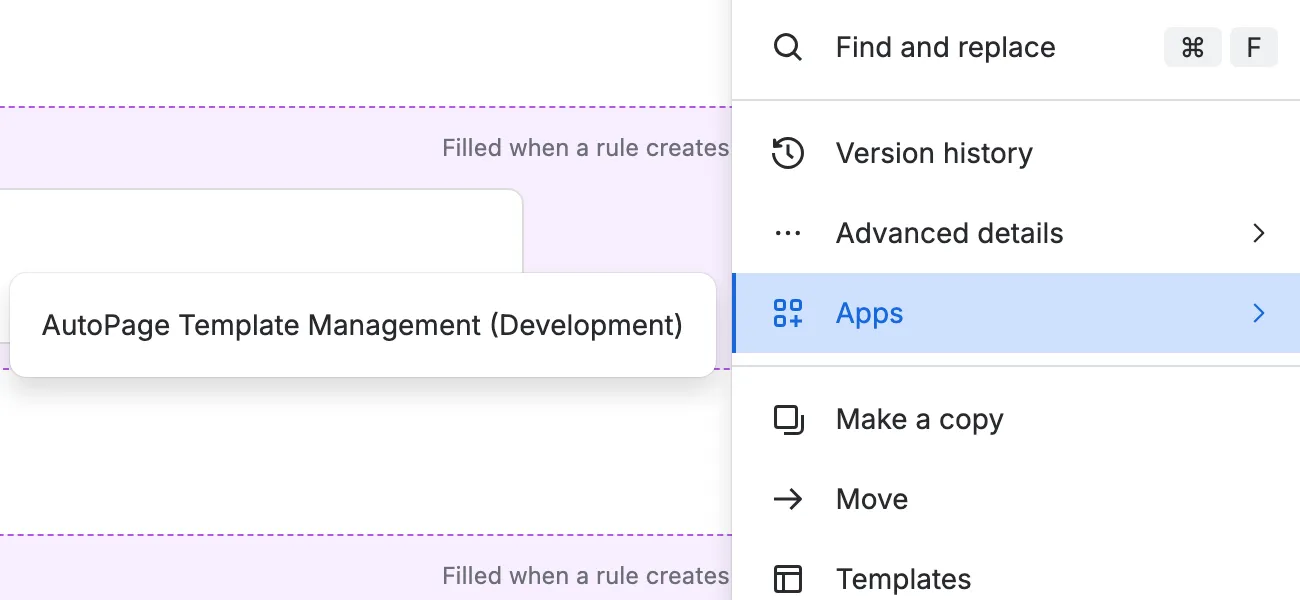
You need edit permission on the page. Without it, the dialog shows the status but you cannot change it.
The dialog does not offer Set as template for a page that an AutoPage rule created and linked to a work item, and for blog posts.
Add an AutoPage macro to a page
Section titled “Add an AutoPage macro to a page”When you publish a page that contains at least one AutoPage macro, AutoPage marks it as an Active template with the source detected. This applies to pages only, not to drafts or blog posts, and not to pages that are linked to a work item.
If you remove all AutoPage macros from a detected template, AutoPage removes its template status. A template that someone set manually keeps its status.