Use a Template in a Rule
A rule copies its template when it creates a page. You choose the template in the rule dialog, in step Create action, section Choose your template page.
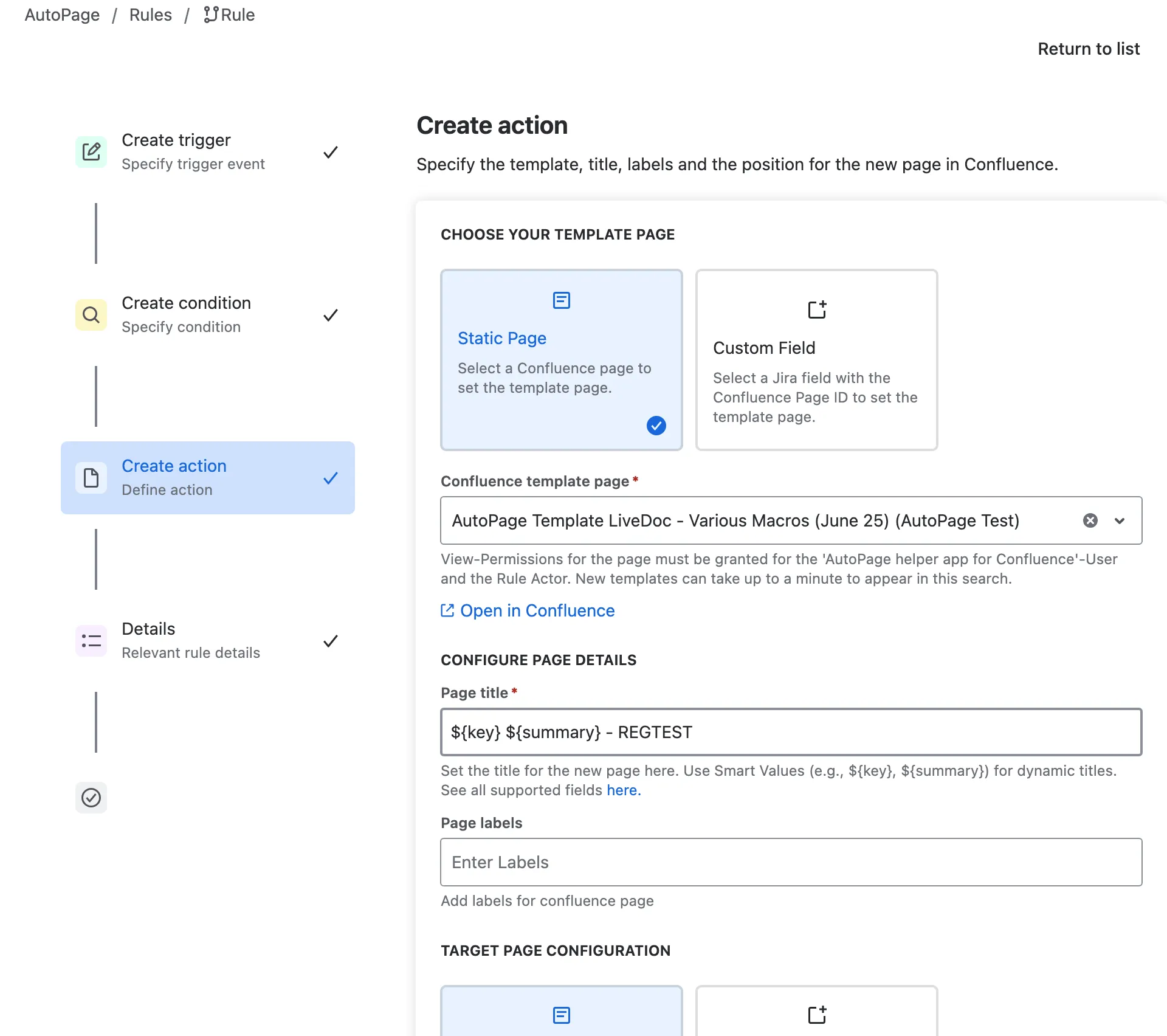
Static Page
Section titled “Static Page”Select Static Page to use the same template for every page that the rule creates.
- Click the field Confluence template page.
- Type a part of the template title. The list shows active templates only, from all spaces. Each entry shows the title and the space.
- Select the template.
Click Open in Confluence to open the selected template in Confluence.
- A template that you just created can take up to a minute to appear in this search.
- Archived templates and pages that are not templates are not offered. To use such a page, mark it as template or set it active first.
- The AutoPage helper app for Confluence and the rule actor need view permission on the template page. See Permissions.
Custom Field
Section titled “Custom Field”Select Custom Field to read the template page from a Jira field of the work item. The field holds the Confluence page ID. This allows different work items to use different templates. AutoPage does not check the template status of these pages.
Template warnings
Section titled “Template warnings”If the template of a rule is archived, in the Confluence trash, in an archived space or an archived page, the rule list shows a warning icon next to the rule. The tooltip names the reason. The rule editor shows the same warning in the Create action step.
| Template | The rule | What to do |
|---|---|---|
| Archived template | keeps working. The template is no longer suggested. | Set it active again in the Templates tab or choose another template. |
| Page in the Confluence trash | keeps working and copies the page from the trash. If the trash is emptied, the rule fails. | Restore the page in Confluence or choose another template. |
| Page in an archived space | keeps working. | Move the page to an active space or choose another template. |
| Archived page | fails. Confluence does not copy archived pages. | Restore the page or choose another template. |