Manage Templates
You manage templates in two places:
- In Jira, in the Templates tab of the AutoPage admin page. Only Jira administrators see this tab.
- In Confluence, on the template page itself.
The Templates tab
Section titled “The Templates tab”The tab lists all templates that you can view.
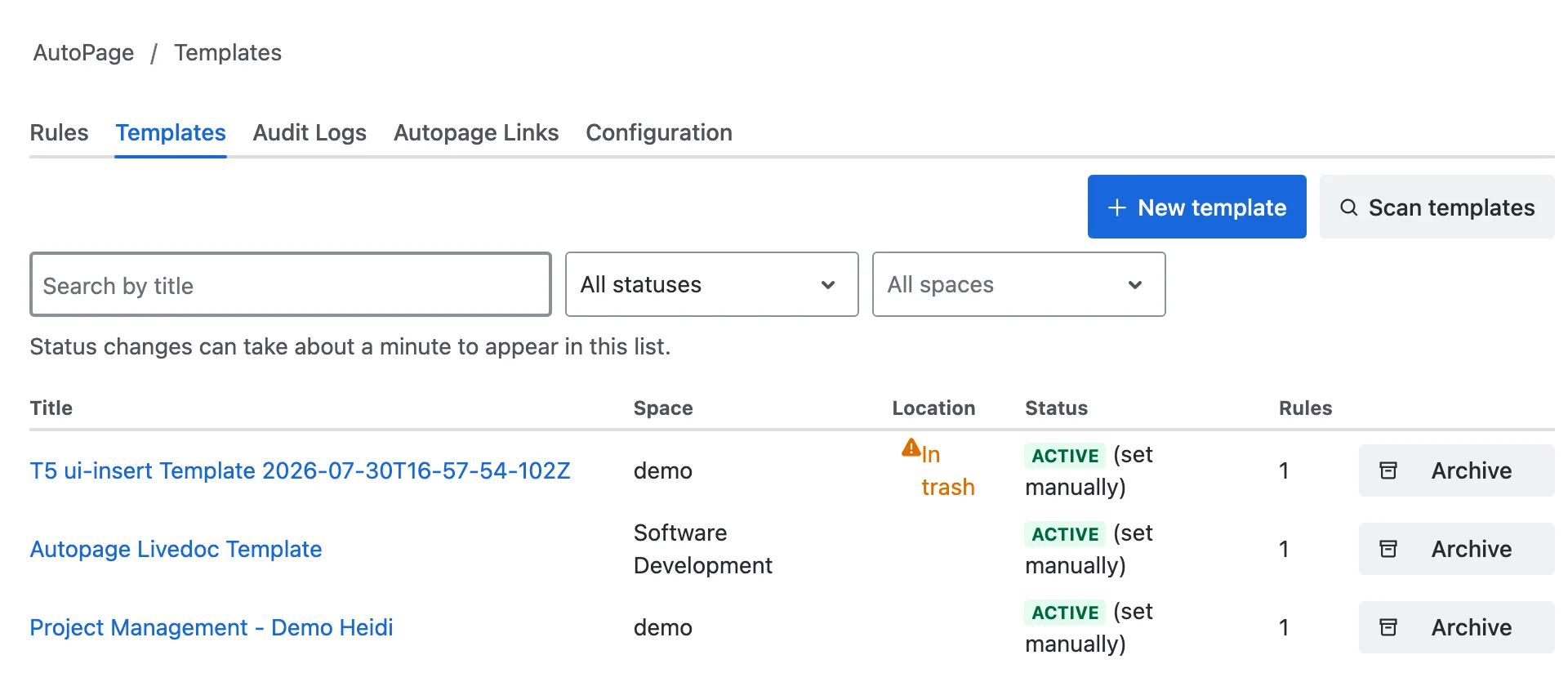
| Column | Content |
|---|---|
| Title | The template page. Click it to open the page in Confluence. |
| Space | The space of the page. |
| Location | Empty for a normal page. A warning if the page is in the trash or archived, see Location. |
| Status | Active or Archived. For an active template, the source: detected or set manually. |
| Rules | The number of rules that use the template. |
Use the filters above the list to narrow it down: All statuses, All spaces and Search by title. Click Load more to show more templates.
Archive a template
Section titled “Archive a template”Archive a template if it should no longer be used for new rules.
- The rule dialog no longer suggests the template.
- Rules that already use the template keep working. The rule list and the rule editor show a warning.
- The page itself stays unchanged in Confluence.
You need edit permission on the template page in Confluence. Without it, the tab shows “You need edit permission for this page in Confluence to change its template status.”
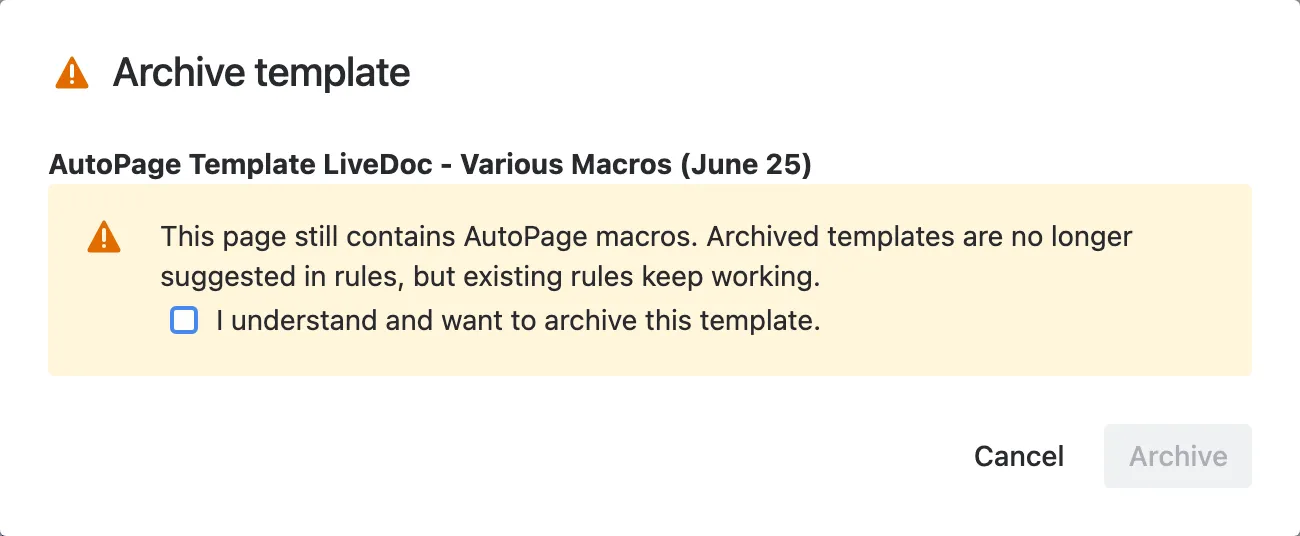
To archive a template, click Archive in its row. If the page still contains AutoPage macros, a dialog asks you to confirm: select I understand and want to archive this template. and click Archive.
To use an archived template again, click Set active. Its status is then Active (set manually).
Location
Section titled “Location”AutoPage checks where the templates of your rules are. If a template is not on a normal page, the Location column shows a warning. These rows appear at the top of the list.
| Location | What happens to the rules | What to do |
|---|---|---|
| In trash | Rules still copy the page. If someone empties the trash, the rules fail. | Restore the page in Confluence or choose another template. |
| Space archived | Rules still copy the page. | Move the page to an active space or choose another template. |
| Page archived | Confluence does not copy archived pages, so the rules fail. | Restore the page or choose another template. |
AutoPage shows these warnings only for templates that at least one rule uses. If AutoPage cannot check all templates, the tab shows “Some templates could not be checked.”
Scan templates
Section titled “Scan templates”The scan finds the template pages of your rules and marks them as templates. Start it to mark the templates of existing rules right away; otherwise the daily scan marks them.
The scan marks every page that a rule uses as Static Page template and that has no template status yet. Templates that a rule reads from a custom field are not part of the scan. It skips pages that already have a status, that are linked to a work item, or that no longer exist.
To start the scan, click Scan templates. The result shows how many pages the scan marked, skipped, and could not mark, for example “3 pages marked as template, 12 skipped, 0 failed.”
AutoPage also runs the scan once a day. If the manual scan cannot check all pages in time, the result says how many pages are left; the daily scan checks them.
Manage a template in Confluence
Section titled “Manage a template in Confluence”The byline of a template page shows AutoPage Template, or AutoPage Template (archived) for an archived template. All users who can view the page see it.

Click the byline item, or open the page menu ••• → Apps → AutoPage Template Management. The dialog shows the status of the page.
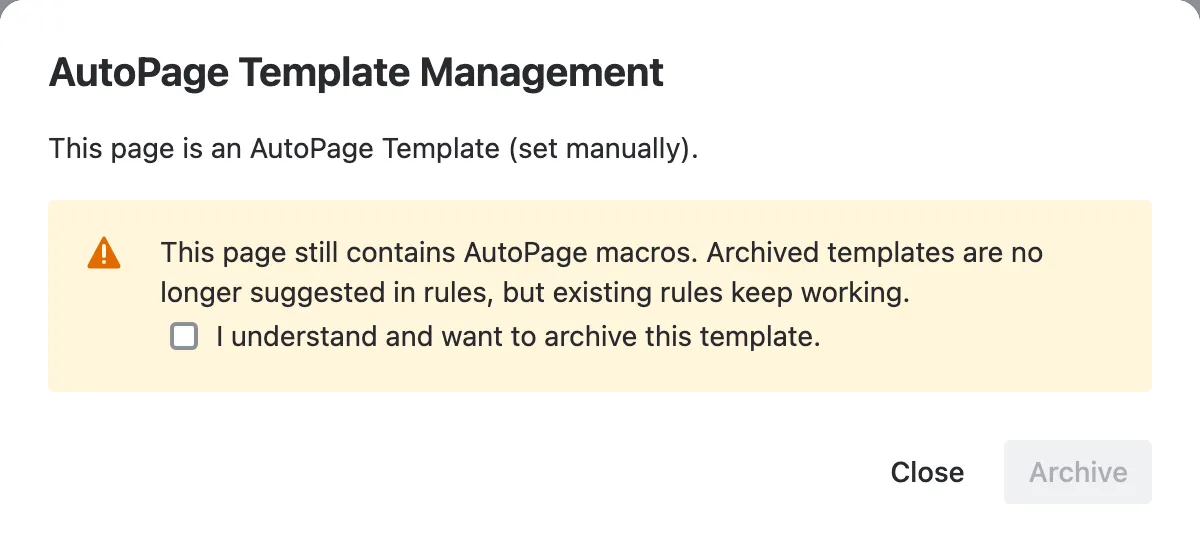
- Archive archives an active template. If the page still contains AutoPage macros, confirm with I understand and want to archive this template.
- Set as template makes the page an active template again.
You need edit permission on the page to change its status. Without it, the dialog shows “You need edit permission on this page to change its template status.”